External Release Notes: Desktop App for Windows v 4.5.0 (July 8, 2026)
New Features and Enhancements
Multi-Entity Management Support
Multi-Entity Management (MEM) is now supported in the Desktop App for Windows. When a user authenticates to a domain that is interlinked with other Egnyte domains, the Desktop App detects the associated domains and automatically authenticates the user into them without requiring a separate manual login per domain. This simplifies sign-in for organizations that operate across multiple linked Egnyte tenants.
This feature is the first in a powerful suite that will allow the users to manage multiple Egnyte accounts. To enable and benefit from Multiple Entity Management contact us.
Manual File Locking
Users can now manually lock and unlock files directly from the Windows Desktop App context menu. A new Lock File action lets users explicitly prevent concurrent edits when working on a file. Manual file locking is enforced across all clients (Web, Desktop, Mobile) and integrate with existing web and Desktop App locking mechanisms to maintain a consistent experience.
Desktop App CLI Logout
IT administrators can now remotely sign users out of the Egnyte Desktop App by running a new CLI command on managed devices. The command revokes all stored authentication tokens across all configured drives and domains, requiring users to re-authenticate the next time they access their Egnyte drives. This enables organizations to enforce periodic re-authentication on their own schedule using scripting tools
Expanded Skipped File Notifications for ABC Drives
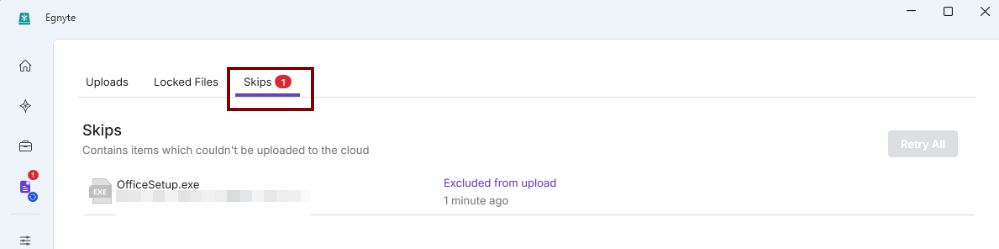
The Desktop App now displays additional reasons when a file is skipped during upload in the ABC drive, including unsupported filename characters, locked files, incomplete files, delayed uploads for specific file types, and permanently excluded file types. Skip reasons are preserved across app restarts, providing users with clearer visibility into why files were not uploaded.
Improved Thumbnail Performance in File Explorer
The Desktop App now delivers faster and more responsive thumbnail loading in File Explorer, especially for folders containing large numbers of images. Thumbnail generation now runs in the background to prevent Explorer from blocking other file operations; previously viewed thumbnails are cached across app restarts for faster loading, and unnecessary full-file downloads for thumbnail generation have been eliminated where possible. These improvements provide a smoother browsing experience and reduce cloud bandwidth usage.
Improved Stability During High File Activity
The Desktop App has been optimized to maintain stable memory usage during workloads that involve frequent or continuous file access, such as automated processes or applications that repeatedly read files from an Egnyte drive. This improvement helps prevent excessive memory growth during prolonged activity while preserving file access and sync performance.
Issues Addressed
Right-Click Context Menu Could Hang for Up to 20 Seconds
Some users reported that the right-click context menu in File Explorer would intermittently hang for extended periods in a few cases, roughly 20 seconds, when interacting with files or folders in the Egnyte drive.
Subscribed Offline Sync Folders Were Repeatedly Deleted and Re-Synced
In certain mass-deployment configurations where the offline sync folder path matched the drive's Cloud Start Path, subscribed offline folders were being unsubscribed and deleted at restart, only to be re-detected and re-downloaded on the next startup. This created a repeating delete/re-sync loop that consumed significant CPU, disk, and bandwidth.
Ask a Document AI Window Opened Cut Off
For users with Windows accessibility text scaling set above 100%, the Ask a Document window could open at an incorrect size, causing content to be clipped and preventing the window from being resized.
.PRG Files Failed to Upload to the Cloud
Files created by Hexagon PC-DMIS software (.PRG files) were being skipped by the Desktop App and not uploaded to the cloud, affecting customers using PC-DMIS for their programming workflows.
Known Issues and Limitations
Please refer to this article for the list of known limitations
Additional Information and Resources
How to Upgrade
Visit the Desktop App installers article to download and install the latest version of the Desktop App or update the existing app to the newest version on all the devices. It may take a few days for the latest version to propagate to all user devices. However, users can manually upgrade their app immediately after the release.