This article provides instructions for configuring the FileZilla FTP client to work with Egnyte, adding filters, and more. For background information about uploading files using FTP and access to other FTP configuration guides, read this article.
Exclusions: Refer to this article for unsupported characters and excluded file types that will not be synced.
Pre-requisites
Configuration
Add Filters
Change Default Remote Location
Troubleshooting
Firewall Recommendations
Pre-requisites
To configure FileZilla for FTP access, it is necessary to enable FTP from settings in the Web UI.
Configuration
-
Install FileZilla FTP V.3.38 or higher.
If FileZilla is already installed, go to Settings, select Updates, click the Run update check now... button to ensure user has an acceptable version installed.
- From the menu, go to File, then Site Manager, and click New Site.
- Enter the following information (dependent on the type of connection being used) in the General tab and click OK.
-
Protocol:
- For FTP and FTPES Connections: FTP - File Transfer Protocol
- For SFTP Connections: SFTP - SSH File Transfer Protocol
- Host: ftp-acme.egnyte.com (Replace acme with Egnyte domain name)
-
Encryption: Require explicit FTP over TLS
This option will not appear when SFTP is selected for the protoco
- For Password Authentication, select Normal for Logon Type
-
User: jsmith$acme (Replace jsmith with Egnyte username and acme with Egnyte domain name. The $ character is a separator between username and domain name.)
If the FTP Client does not support $ symbol then users can use any of the following symbols: % # | @ &
-
Password: User's Egnyte password.
- For SSO-authenticated users, it is necessary to create a non-SSO password for FTP. Instructions for this can be found here
- Too many incorrect password attempts may temporarily block the access for security reasons. If this happens, wait for some time before trying again with the correct password. -
If the Egnyte account has authenticator app-based MFA enabled, set Logon Type to Interactive instead of Normal. This allows FileZilla to prompt for password and then the authenticator app code. See SFTP with MFA (Authenticator App) for details.
-
For SSH Key-based authentication, select Key file for Logon Type and browse and select the file containing private key in Key file:
-
Protocol:
- Go to the Transfer Settings tab and check the box next to Limit number of simultaneous connections.
Limit the maximum number of simultaneous connections to 6. When these connections go beyond 6, user may see a 550 Cannot Connect error.
- Click OK once completed.
- If using an SFTP connection, skip ahead to step 8.
Expand the FTP section and set the following:
Transfer Mode to Passive
Uncheck the box for Allow fall back to other transfer modes on failure
Check the box for Send FTP keep-alive commands
- Expand the Transfers section and select File Types. Set the Default transfer type to Binary.
- From FileZilla's main menu, click Edit, then Settings. Then click Connection.
-
Set the connection Timeout in seconds to 600 and Maximum number of retries to 2.
If planning to use Storage Sync, user needs to select the option to preserve timestamps of transferred files. Users can do this from within the main toolbar of FileZilla. Click Transfers in the main toolbar of FileZilla, then Preserve timestamps of transferred files.
Egnyte limits FTP/SFTP users to three concurrent transfers. User can change this setting in FileZilla in the Transfers setting page.
Add Filters
- To add filters, click View in the FileZilla menu and open the Directory listing filters.
- Click Edit filter rules.
- Create a new filter by selecting New and add filters to exclude filenames with characters not supported in Egnyte. For an updated list, refer to this article.
- Click OK once finished.
- Select Useless Explorer files, Temporary, Configuration files, and the custom filter created for Egnyte unsupported characters.
- Click OK to enable these filters.
- To connect, click the icon shown below.
- Click Connect on the Site Manager window.
- Users can upload files once connected. Browse local drive to upload from the Local Site window on the left. Drag the files to an appropriate folder in the Remote Site on the right (e.g. /Shared/Documents).
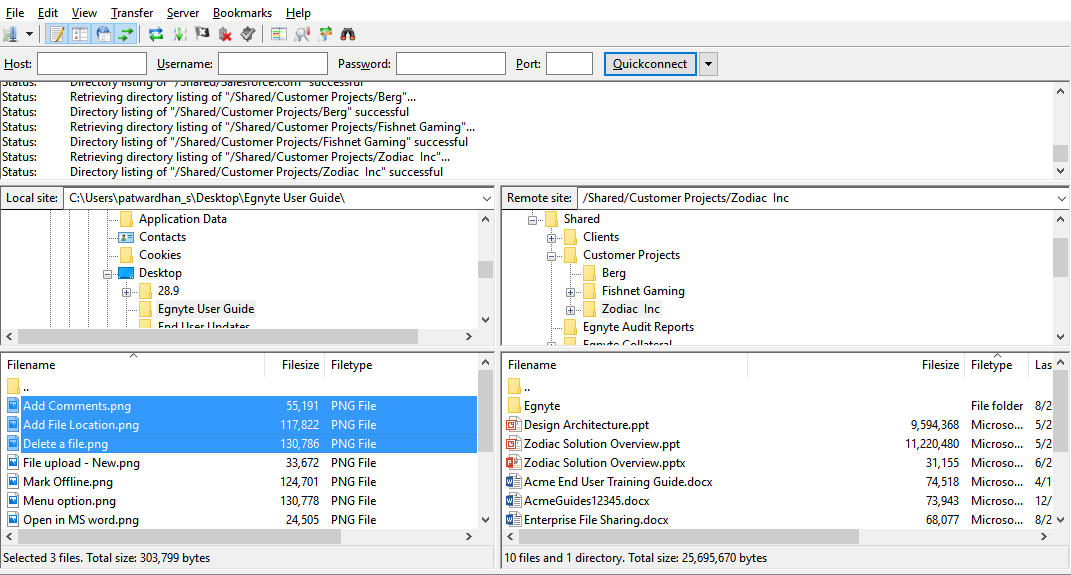
Change Default Remote Location
By default, users will be connected to the root folder(/Shared and /Private) in Egnyte. Follow these steps to change the default remote location:
- Open Site Manager and select the Egnyte site.
- Navigate to the Advanced tab
- Set Default remote directory.
- Click on OK.
Troubleshooting
For troubleshooting FTP/SFTP related issues, we recommend enabling logs.
- From FileZilla's main menu, click Edit and then Settings.
- Select Logging under the File editing section.
- Check the box next to Show timestamps in message log and Log to file
- Specify the location for the log file.
- Click OK to save the changes.
Restart FileZilla to apply these settings.
Firewall Recommendations
If firewall has restrictions and blocks certain ports, user may need to allow the following outbound port(s)
- FTP/FTPES: port (21)
- SFTP/SSH: port (22)
Egnyte uses the following ports below for data transfer:
- 10000 - 12000
- 20000 - 22000