Overview
The Google Previewer enables a native, in-browser preview of Google Workspace files (.gdoc, .gsheet, .gslides) directly within the Egnyte interface. Instead of converting these files to PDF for display, Egnyte renders them using Google's viewer, preserving formatting, layouts, and other Google-specific elements as they appear in Google Workspace.
Using Google Previewer
There is nothing to configure as a user or administrator. Simply click to preview a Google Workspace file in Egnyte, and the Google native previewer will load automatically inside the Egnyte preview panel.
- The preview is read-only. To edit the file, use the standard Edit in Google option.
- Users and administrators must use the same email address for their Google account and Egnyte account to use the Previewer properly.
Eligible Users
The user must be logged into their Google account to use the Google Previewer. The previewer requires the user’s identity to verify permissions on the underlying Google file.
User Type |
Preview Available |
| Authenticated (logged-in) Egnyte user | Yes |
| External share link | No, falls back to native previewer |
Supported File Types
The Google Previewer works with the following file types stored in Egnyte:
- Google Docs (.gdoc)
- Google Sheets (.gsheet)
- Google Slides (.gslides)
Troubleshooting
Preview is Stuck Loading or Shows a Login Prompt
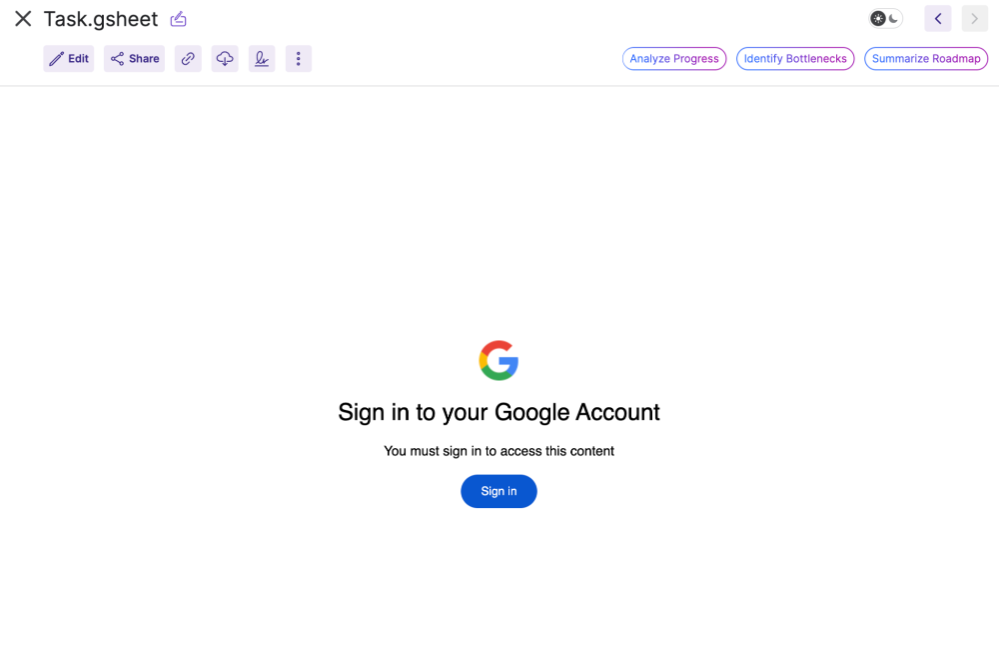
Ensure that the user is logged into their Google account in the same browser session and third-party cookies or cross-site tracking are not blocked.
Fallback to PDF or Standard Previewer Occurs
Verify that the file is viewed by an authenticated Egnyte user and not through an external public share link.
Preview Displays a “You need access” Message
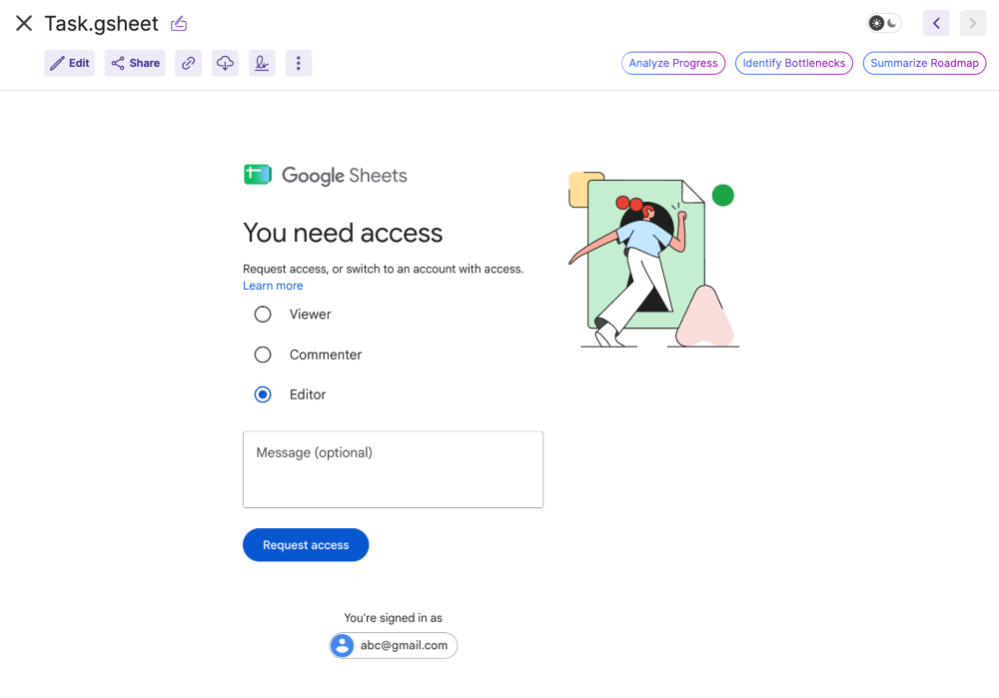
Verify that the user are logged in to Google with the same email address that is used in the Egnyte account.